If you've integrated Klaviyo Reviews with your Shopify store and set up the Featured Reviews Carousel widget, but your reviews aren't showing up on your homepage or product pages, you're not alone. This is one of the most common frustrations we hear from e-commerce store owners trying to leverage social proof on their sites.
The good news? There's usually a simple fix that takes just a few minutes once you know what to look for. In this comprehensive guide, we'll walk you through exactly how to get your Klaviyo review carousel displaying properly, plus troubleshooting tips for the most common issues.
Understanding Klaviyo Reviews and Onsite Widgets
Before we dive into the solution, let's quickly cover what Klaviyo Reviews offers and why the Featured Reviews Carousel is such a valuable tool for your Shopify store.
Klaviyo Reviews is a native review collection and display system that integrates seamlessly with your Klaviyo account. Unlike third-party review apps that require separate subscriptions and integrations, Klaviyo Reviews leverages your existing customer data to automate review requests and display social proof directly on your site.
The Featured Reviews Carousel is one of several onsite widgets Klaviyo offers. It's specifically designed to showcase your best customer reviews in an attractive, scrolling format that's perfect for homepage displays, landing pages, or any page where you want to build trust with potential customers.
Setting Up the Featured Reviews Carousel Widget
If you haven't set up your carousel widget yet, here's the basic process:
- Navigate to Reviews: In your Klaviyo account, look for the "Reviews" section in the left-hand navigation menu.
- Access Reviews Settings: Click on "Reviews Settings" to access all configuration options.
- Select Onsite Widgets: Within the settings, you'll find the "Onsite Widgets" section where you can customize how reviews are displayed on your site.
- Choose Featured Reviews Carousel: Select the "Featured Reviews Carousel" option, which is ideal for homepages and high-traffic landing pages.
- Customize Display Settings: Configure the styling, colors, and layout to match your brand aesthetic.
- Install on Shopify: Follow the installation instructions to add the widget code to your Shopify theme.
Once you've completed these steps, you might expect your carousel to automatically populate with your best reviews. But here's where most people run into problems...
The Critical Step Everyone Misses: Featuring Your Reviews
Here's the key insight that solves 90% of carousel display issues: The Featured Reviews Carousel only displays reviews that you've manually marked as "featured."
This isn't a bug or a glitch—it's actually a feature that gives you complete control over which reviews appear in this prominent position on your site. However, because this step isn't immediately obvious, many store owners install the widget and wonder why nothing shows up.
How to Feature Reviews in Klaviyo
Follow these steps to select which reviews appear in your carousel:
- Go to Your All Reviews Page: Navigate to the main Reviews section in Klaviyo where you can see all customer reviews you've collected.
- Review Must Be Published: Before you can feature a review, make sure it's been published. Unpublished or pending reviews cannot be featured.
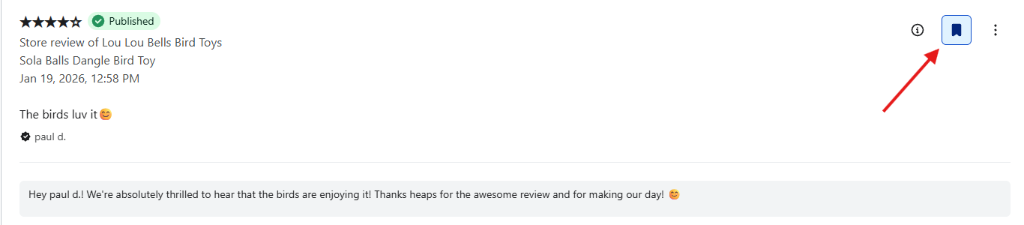
- Click the Feature Button: Look for the bookmark/feature icon next to each review. This button is typically located on the right side of each review entry.
- Confirm Featured Status: Once clicked, the review should show a visual indicator (usually a filled bookmark icon) confirming it's been featured.
- Select Multiple Reviews: Feature at least 3-5 reviews to create an effective carousel display. The carousel works best with multiple reviews to scroll through.

What Your Featured Reviews Carousel Should Look Like
Once you've properly featured your reviews, your carousel should display beautifully on your site. Here are two examples of properly configured Featured Reviews Carousels:
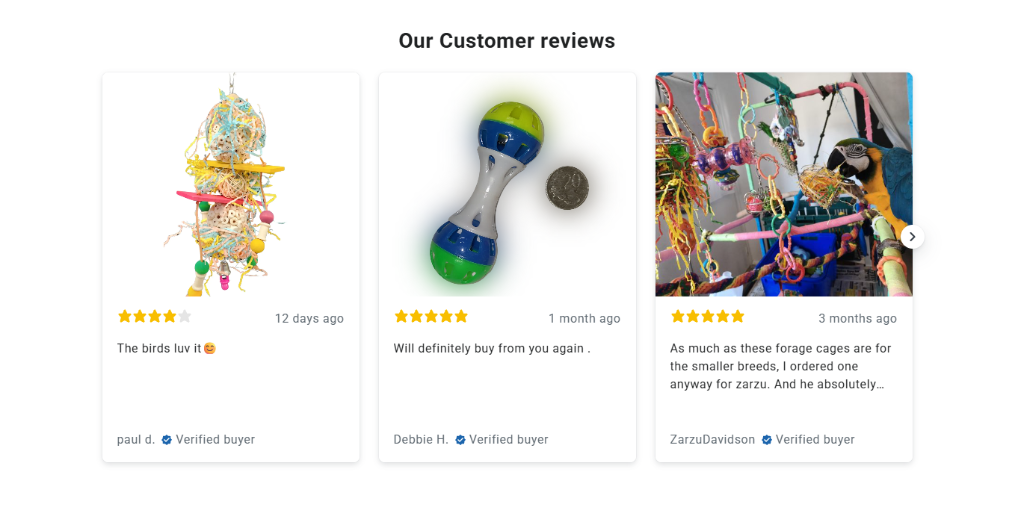
This example shows a carousel with review photos, star ratings, customer names, and review dates—creating powerful social proof that can significantly impact conversion rates.

Troubleshooting: Widget Still Not Displaying?
If you've featured reviews and your carousel still isn't showing up, here are additional troubleshooting steps:
1. Check Widget Installation
Verify that the widget code is properly installed in your Shopify theme. Go to your Shopify admin, navigate to Online Store > Themes > Edit Code, and confirm the Klaviyo widget snippet is present in the correct location (usually in your homepage template or a section file).
2. Verify Published Status
Double-check that the reviews you've featured are actually published. Draft or pending reviews won't display even if featured.
3. Clear Your Cache
Sometimes, changes don't show immediately due to browser or CDN caching. Try clearing your browser cache or viewing your site in an incognito/private window.
4. Check Minimum Review Requirements
Some carousel configurations require a minimum number of featured reviews before displaying. Try featuring at least 3-5 reviews to ensure you meet any minimum thresholds.
5. Review Theme Compatibility
If you're using a custom or heavily modified Shopify theme (like Dawn with custom modifications), there may be CSS conflicts preventing the widget from displaying properly. Check your browser's developer console for JavaScript errors.
6. Confirm Klaviyo Integration
Make sure your Klaviyo account is properly connected to your Shopify store. Go to Integrations in Klaviyo and verify the Shopify connection is active.
Best Practices for Your Featured Reviews Carousel
Now that you know how to get your carousel working, here are some best practices to maximize its effectiveness:
Curate Your Best Reviews
Feature reviews that are detailed, include photos, and tell a compelling story. Generic "great product" reviews are less impactful than reviews that describe specific benefits or use cases.
Rotate Featured Reviews Regularly
Update your featured reviews monthly to keep your social proof fresh and relevant. Unfeature older reviews and showcase recent feedback to demonstrate ongoing customer satisfaction.
Include Photo Reviews When Possible
Reviews with customer photos are significantly more trustworthy and convert better than text-only reviews. Prioritize featuring reviews that include images of customers using your products.
Balance Star Ratings
While you'll naturally want to feature 5-star reviews, including an occasional 4-star review can actually increase credibility by showing authenticity. Just make sure the 4-star reviews are still positive overall.
Consider Review Diversity
Feature reviews for different products or from different customer segments to show the breadth of your offerings and appeal to various potential buyers.
Advanced Customization Options
Once your carousel is displaying correctly, you can further customize its appearance:
- Styling and Colors: Match the carousel to your brand colors and fonts within the Klaviyo widget settings.
- Carousel Speed: Adjust how quickly reviews scroll or transition in the carousel.
- Mobile Optimization: Ensure the carousel displays properly on mobile devices with appropriate sizing and touch navigation.
- Review Filtering: Set parameters for which reviews can be featured based on rating thresholds or specific products.
- Call-to-Action Integration: Add buttons or links within the carousel to drive specific actions like "Shop Now" or "Read Full Review."
Measuring the Impact of Your Reviews Carousel
Once your Featured Reviews Carousel is live and displaying properly, track these key metrics to measure its effectiveness:
- Conversion Rate: Compare conversion rates on pages with the carousel versus those without.
- Time on Page: Monitor if visitors spend more time on pages featuring the reviews carousel.
- Bounce Rate: Check if the carousel helps reduce bounce rates by building immediate trust.
- Click-Through Rate: Track how many visitors interact with reviews in the carousel.
- Sales Attribution: Use Klaviyo's analytics to see if visitors who view reviews are more likely to convert.
Common Questions About Klaviyo Featured Reviews
How many reviews should I feature?
We recommend featuring between 5-10 reviews for an optimal carousel experience. This gives visitors enough variety without overwhelming them, and ensures the carousel has content to cycle through effectively.
Can I feature the same review on multiple pages?
Yes! Once a review is featured, it will appear in any Featured Reviews Carousel widget across your entire site. You don't need to feature reviews separately for each page.
What happens if I unfeature a review?
If you unfeature a review, it will immediately stop appearing in your Featured Reviews Carousel. The review will still be published and visible in other review displays, just not in the featured carousel.
Can customers see which reviews are featured?
From a customer's perspective, there's no visible indicator that a review is "featured" versus a regular review. The featured designation is purely for your internal curation and display purposes.
Do featured reviews affect SEO?
Yes! Reviews displayed on your site can contribute to SEO by adding fresh, unique, user-generated content. Make sure your Klaviyo widget settings include structured data markup for maximum SEO benefit.
Next Steps: Optimizing Your Review Collection
Now that your Featured Reviews Carousel is displaying correctly, take your review strategy to the next level:
- Automate Review Requests: Set up Klaviyo flows to automatically request reviews after purchase.
- Incentivize Photo Reviews: Offer small discounts or loyalty points for reviews that include photos.
- Respond to Reviews: Engage with customers by responding to their reviews, especially detailed or photo reviews.
- Share Reviews: Promote your best reviews on social media to drive more traffic to your site.
- A/B Test Placement: Experiment with carousel placement on different pages to find what drives the most conversions.
Conclusion
The Klaviyo Featured Reviews Carousel is a powerful tool for building trust and increasing conversions on your Shopify store. The key to success is understanding that you must manually feature reviews before they'll appear in the carousel—it's not automatic.
By following the steps in this guide, you should now have a fully functional reviews carousel displaying your best customer feedback. Remember to regularly rotate your featured reviews to keep content fresh and continue collecting new reviews to maintain a steady stream of social proof.
If you're still experiencing issues after following these troubleshooting steps, consider reaching out to Klaviyo support with specific details about your setup and any error messages you're seeing. They can help diagnose more complex technical issues that may be specific to your store configuration.
Have questions about setting up Klaviyo Reviews or other aspects of your Shopify store optimization? Feel free to reach out—we're here to help Australian e-commerce businesses succeed online.